→ Compare Hierarchy
September 10, 2026
Last updated on September 25, 2026
Compare Hierarchy lets you line up two notebooks, two sections, or two section groups side by side and see exactly what's different between them: which pages exist on only one side, which ones share a name but were modified at different times, and - when you ask it to - how similar their actual content really is. From the same window you can open either side's page, copy or mirror whole branches (or single pages) from one side to the other, delete what you don't need, and score any two pages' content against each other, either one pair at a time or across an entire notebook in one pass.
|
It's built for situations like:
- You keep a personal copy of a shared notebook and want to know what's changed since you last synced it.
- You're merging two section groups that grew apart and need to see, page by page, where they actually diverge before you copy anything.
- You suspect a handful of pages were duplicated or forked a while back and want a real similarity score instead of just guessing from titles.
This page covers:
- Opening Compare Hierarchy
- Parts of the Compare window
- The center well
- Selecting rows
- Copying and mirroring
- Deleting pages
- Comparing page content
- Comparing two unrelated pages
- Deep scanning a notebook or section
- Tips
Opening Compare Hierarchy
On the OneMore ribbon tab, open the Extras menu, and choose Compare Hierarchy. (If you keep the separate OneMore tab hidden, the same command is also available from OneNote's Home tab, under the OneMore group's Extras menu.)
OneMore first asks you to pick a source (the left side) and then a target (the right side). Each can be a notebook, a section, or a section group, but both sides have to be the same kind of thing - you can't compare a notebook to a single section, for instance. The target also can't be the source itself, or a parent or child of it.
Note that you'll see the hierarchy selection dialog twice - once for the source and then again for the target
Once both sides are chosen, the Compare Hierarchy window opens. It's modeless, so you can keep working in OneNote - clicking around, editing pages - while it stays open alongside it.
Parts of the Compare window
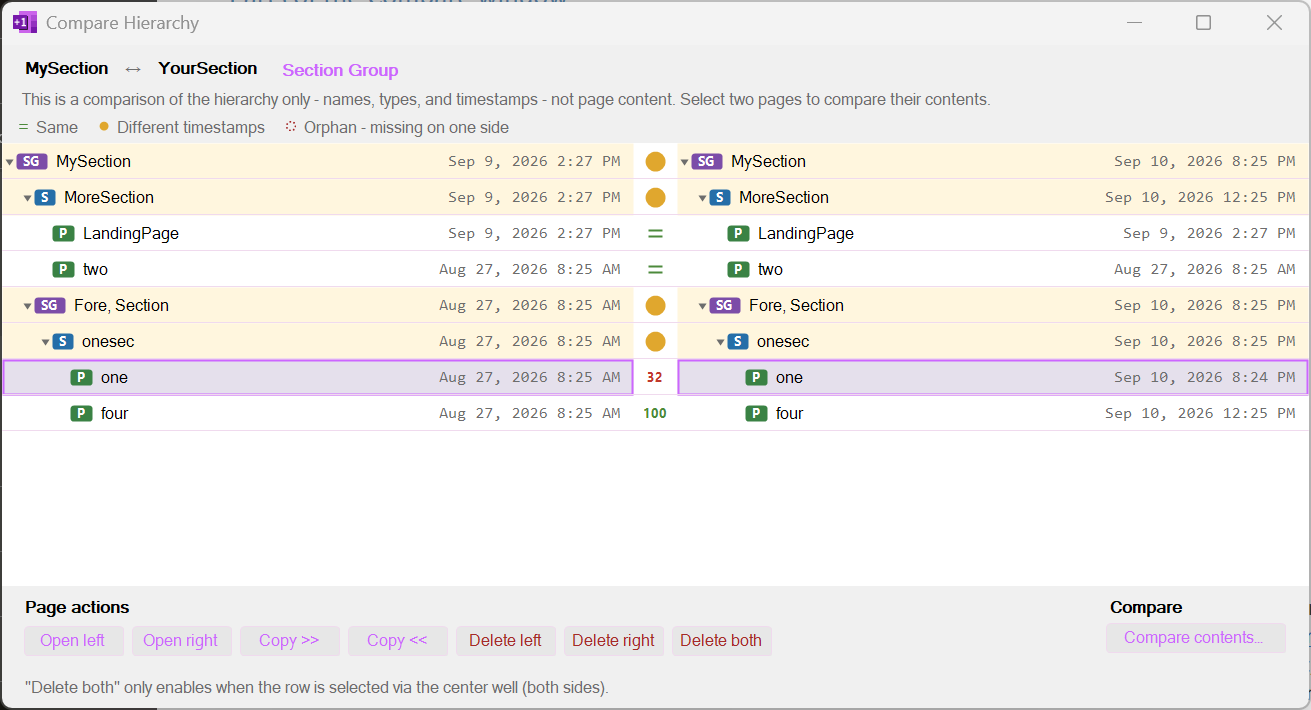
Across the top, the header names both sides you're comparing and shows a small badge for what kind of thing they are (Notebook, Section, or Section Group). Just below it, a reminder that this view compares structure - names, types, and timestamps - not page content itself; you have to ask for content to be compared explicitly (see Comparing page content).
Below that is a small legend, then the two-column tree itself: the source side on the left, the target side on the right, and a narrow column of circular wells running down the middle between them. Every notebook, section group, section, and page that exists on either side gets a row, each with a small colored type badge, its name, and its last-modified timestamp. Rows can be expanded and collapsed like any OneNote hierarchy.
If something exists on one side but not the other - a page you haven't copied over yet, say - the missing side of that row shows an italic "not present" placeholder with a faint reddish tint instead of a name.
The center well
The well between the two columns is the fastest way to tell what's going on with a row, before you even read the timestamps:
|
Well |
Meaning |
|
Green = |
Both sides are the same - either their timestamps matched exactly, or OneMore just confirmed it (see below). |
|
Plain yellow circle |
Both sides exist, but their modified timestamps differ. OneMore hasn't measured the actual content yet, so this just means "worth a look." |
|
Dashed outline circle |
Orphan - this item exists on only one side. |
|
A colored number |
A measured content-similarity score, from either Compare contents… or a deep scan. Green means the pages are practically identical (100%), blue means very similar (over 95%), yellow means moderately similar (over 80%), and red means they've diverged more than that. |
Copying or mirroring a page always leaves it showing the green = afterward, even though its new timestamp won't match the source's - OneMore knows it just made the two sides identical, so it doesn't wait for you to ask.
Selecting rows
Click a name on the left or the right to select just that side of a row. Click the well itself to select both sides of a matched row at once - this is what most of the action buttons below expect. Wells on orphan rows aren't clickable, since there's nothing on the other side to pair with.
You can also select and move with the keyboard: Up/Down moves to the adjacent row, keeping whatever you had selected (one side, or both); Left and Right walk across a row - left side, to the well, to the right side - the same path a mouse click through the well would take.
Right-clicking any row selects it and opens a context menu with the same actions the buttons below would offer for that row.
Copying and mirroring
|
Select a notebook, section, or section group row via its well, and two panels appear at the bottom of the window. For a container row, you'll see Hierarchy actions:
- Copy >> / Copy << - copies everything under the selected row from one side to the other. Anything missing on the destination is created; anything already matched there gets its content brought up to date. Anything that exists only on the destination side is left alone.
- Mirror >> / Mirror << - does the same as Copy, and then also deletes anything on the destination side that doesn't exist on the source, so the destination ends up an exact match. OneMore tells you up front how many items that will delete before you confirm.
Both ask you to confirm first. If the copy is about to replace a page that was already matched on both sides - not create a brand-new one.
|
A progress dialog tracks the copy page by page and can be canceled at any time; whatever's already been copied stays copied.
Selecting a single page row instead shows Page actions, which include the same Copy >> / Copy << buttons scoped to just that one page, plus Open left / Open right to jump straight to either side's copy of the page in OneNote.
Deleting pages
From the Page actions panel, Delete left and Delete right remove that page from just one side. Delete both removes it from both sides at once, but only enables when the row was selected via its center well - a safeguard so you can't accidentally wipe out both copies of a page by clicking one delete button too quickly. Every delete asks you to confirm first, and none of them can be undone.
Comparing page content
Select a matched page row via its center well, and the always-visible Compare panel's button reads Compare contents…. Click it, and OneMore reads both sides' actual page text and scores how similar they are - entirely locally, with no AI model or network call involved.
A small popup shows the overall percentage front and center, then breaks it down into five weighted factors, each with its own bar and a one-line explanation:
- TF-IDF cosine (45%) - how much the two pages' distinctively-weighted vocabulary overlaps
- Lexical overlap (20%) - how many unique words the two pages share
- Structural similarity (15%) - matching headings and comparable paragraph counts
- Stylistic similarity (10%) - comparable sentence length and writing style
- Entity similarity (10%) - shared proper names and technical terms
Once you close the popup, that row's well updates to show the score itself, colored the same way as the legend above - so you don't have to re-run the comparison to remember how similar two pages were.
Comparing two unrelated pages
Compare contents… doesn't have to be limited to a matched row. Click a page's name on one side as usual, then hold Ctrl and click a page name anywhere on the other side - a different row, even a different section entirely. The two rows you touched now highlight independently (a dashed outline marks the Ctrl-clicked one), and Compare contents… enables for that specific, otherwise-unrelated pair.
Copy, Mirror, and Delete stay disabled while an ad-hoc pair like this is active, since the two pages don't actually share a position in the hierarchy - there's nothing for those actions to resolve a destination against. Comparing content, on the other hand, works on any two pages regardless of where they live.
Deep scanning a notebook or section
Comparing one pair at a time is fine for a handful of pages, but for a whole notebook you can run the same scoring across every matched page underneath a notebook, section, or section group in one pass. Select that row via its well, and the Compare panel's button relabels itself Deep scan…. Click it, confirm (a deep scan can mean scoring a lot of pages, so OneMore checks first), and it works through every matched pair underneath that row, updating each one's well live as it finishes.
Pages that already show the green = are skipped - they're already known to match, so there's nothing to measure - and orphaned pages are skipped too, since there's no counterpart to compare against. Like Copy and Mirror, a deep scan can be canceled partway through, and every page it already scored keeps its result.
Notes
📓 Compare Hierarchy only reads content when you explicitly ask it to - either through Compare contents… or Deep scan…. Simply opening the window and browsing the tree never touches page content, only the hierarchy's own names and timestamps, so it's safe to open on a large notebook just to look around.
📓 Mirror is destructive on the side it's not copying from - it deletes whatever that side has that the source doesn't. Copy never deletes anything; if you're not sure which one you want, start with Copy.
📓 A green = means OneMore considers the two sides identical, either by timestamp or because it just synced them - not that it has necessarily measured their content. If you want an actual percentage for a page that already shows =, that's expected: Compare contents… and Deep scan both skip it, since there's nothing left to reconcile.
#omwiki #omcommands
© 2026 Steven M Cohn. All rights reserved.
Please consider a sponsorship or one-time donation to support ongoing development
Created with OneNote.